Understanding Storage: SSD vs. HDD and When to Use Each
Understand SSD vs. HDD: compare speed, durability, noise, capacity, and cost—plus clear use-cases for gaming, creative work, servers, and backups.
What Makes Storage Matter: In the world of computers and consumer electronics, storage is the silent engine that shapes how fast your device boots, how quickly apps open, and how smoothly large files move. Two main options dominate: the SSD (solid-state drive) and the HDD (hard disk drive). An SSD stores data in flash memory with no moving parts, delivering very low latency and excellent random access performance. An HDD spins magnetic platters and positions a read/write head, excelling at sequential transfers but responding more slowly to scattered requests. Choosing between them comes down to a balance of speed, capacity, budget, power draw, and reliability. SSDs often feel faster in everyday tasks, resist shocks, and run silently. HDDs offer more capacity per dollar, making them ideal for large libraries and backups. Understanding terms like throughput (how much data moves per second) and IOPS (how many operations per second) helps match your workload to the right drive, ensuring you get responsive performance without overspending on unused speed or space.
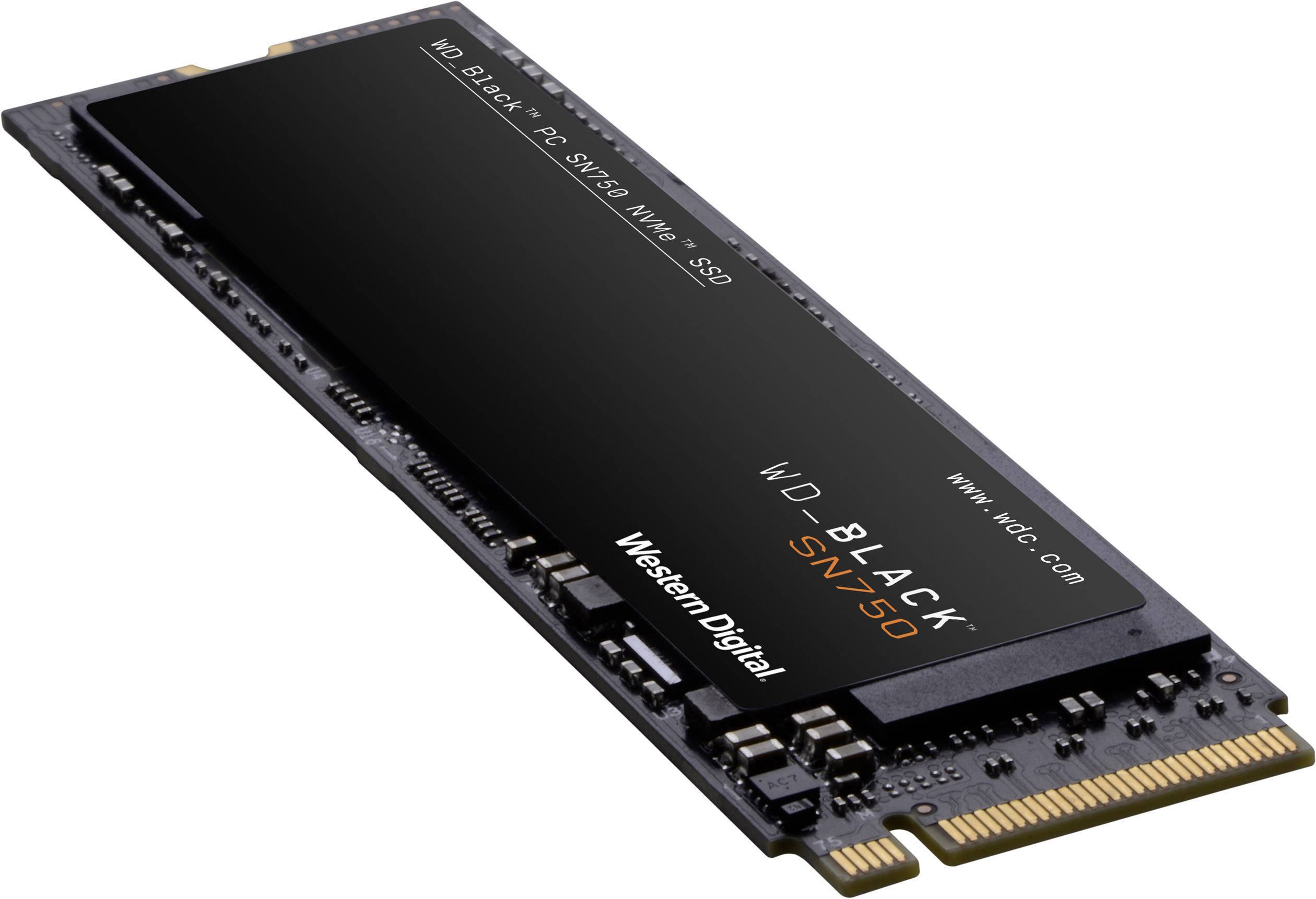
How SSDs Work and Where They Shine: SSDs use NAND flash cells, a controller, and firmware to store and retrieve bits with near-instant access. Techniques like wear leveling, garbage collection, and TRIM maintain speed by distributing writes and clearing stale data. Interfaces matter: NVMe over PCIe slashes latency compared with SATA, so heavy multitasking and small-file operations feel snappier. Real-world benefits include near-instant boot times, quick app launches, reduced latency in creative workflows, and better durability in mobile devices where bumps and vibrations are common. They run quietly, sip power, and generate less heat. Ideal uses include operating system and application drives, scratch disks for photo and video editing, code compilation, virtual machines, and gaming where fast level loads enhance the experience. Trade-offs remain: cost per gigabyte is higher than HDDs, and sustained heavy writes can trigger thermal throttling without adequate cooling. Still, for responsiveness and portability, an SSD is typically the most impactful upgrade you can make.
Inside an HDD and Its Strengths: An HDD stores data on rotating platters while an actuator moves the head to read or write magnetic regions. Because the head must physically travel, seek time and rotational delay add latency, making random access slower than on SSDs. However, HDDs shine in sequential workloads and deliver outstanding capacity per dollar, which is crucial for media libraries, surveillance footage, and large archival sets. Models with higher RPM and larger caches can improve responsiveness, yet they remain best suited for bulk storage, long-form media recording, and backups. They are available in common 3.5-inch and 2.5-inch form factors, integrate well into desktops and NAS enclosures, and can be paired in RAID for redundancy and throughput. Considerations include vibration, noise, and slightly higher power use. HDDs are more sensitive to shock while running, but when properly mounted and cooled, they deliver reliable, sustained performance for big, linear transfers and long-term data retention at a budget-friendly price.
Choosing the Right Drive for Real Tasks: Match the drive to the job. For everyday computing and laptops, an SSD as the primary drive gives instant responsiveness, better battery life, and improved durability. On desktops, a balanced setup uses an SSD for the OS and active projects plus an HDD for bulk files such as videos, photos, and game archives. Creators benefit from a fast NVMe SSD for scratch and active media, with high-capacity HDDs for completed work and backups. Gamers see faster loads with an SSD for frequently played titles, while a large HDD holds the broader library. For home servers and NAS, multiple HDDs in RAID deliver economical capacity; if supported, an SSD cache can accelerate hot data. For field recording or travel, an SSD's shock resistance and speed make it the safer, quieter choice. Think about workload patterns—random vs sequential, read-heavy vs write-heavy—and pick the mix that optimizes latency, throughput, and total cost.
Practical Buying Tips and Longevity: Evaluate capacity, form factor (M.2, 2.5-inch, 3.5-inch), and interface (SATA vs NVMe/PCIe). For SSDs, check endurance ratings like TBW or DWPD, controller quality, and whether the drive has DRAM for faster mapping. For HDDs, look at RPM, cache size, and workload ratings suitable for desktop, NAS, or surveillance use. Heed warranty length as a durability signal. Maintain health with SMART monitoring, keep firmware updated, and ensure good airflow. SSDs prefer free space for over-provisioning—aim to leave headroom so garbage collection and TRIM keep performance steady. Avoid defragmenting SSDs; periodic defrag can help HDDs with heavy fragmentation. Guard against power loss with a UPS on desktops. Back up regularly using a clear plan, such as the 3-2-1 rule: multiple copies, different media, and one offsite. When retiring drives, use secure erase for SSDs and multi-pass overwrites or physical destruction for HDDs. With thoughtful selection and care, both drive types deliver long, dependable service.