Monitors Demystified: Resolution, Refresh Rate, and Color Accuracy
Understand monitor specs without the jargon: what resolution really means, how refresh rate affects motion, and why color accuracy matters.
Resolution Explained: Monitor resolution describes how many pixels form the image, but clarity isn't just about raw counts. What truly shapes perceived sharpness is pixel density relative to screen size and your viewing distance. A higher density makes text crisper and edges smoother, though small UI elements may require scaling in the operating system. Consider aspect ratio too: classic 16:9 suits general use, while ultrawide and super‑ultrawide formats expand horizontal space for timelines, side‑by‑side apps, or immersive play. Higher resolutions increase workspace and detail in photos, CAD, and spreadsheets, yet they also demand more from your graphics processor, especially in 3D workloads. Think about your content: for reading and code, sharp text reigns; for editing, pixel‑accurate previews matter; for games, you might balance resolution with higher frame rates. Finally, check your platform's scaling quality and app support to avoid fuzzy interfaces, and match your resolution to both desk depth and font sizes for comfortable, all‑day clarity.
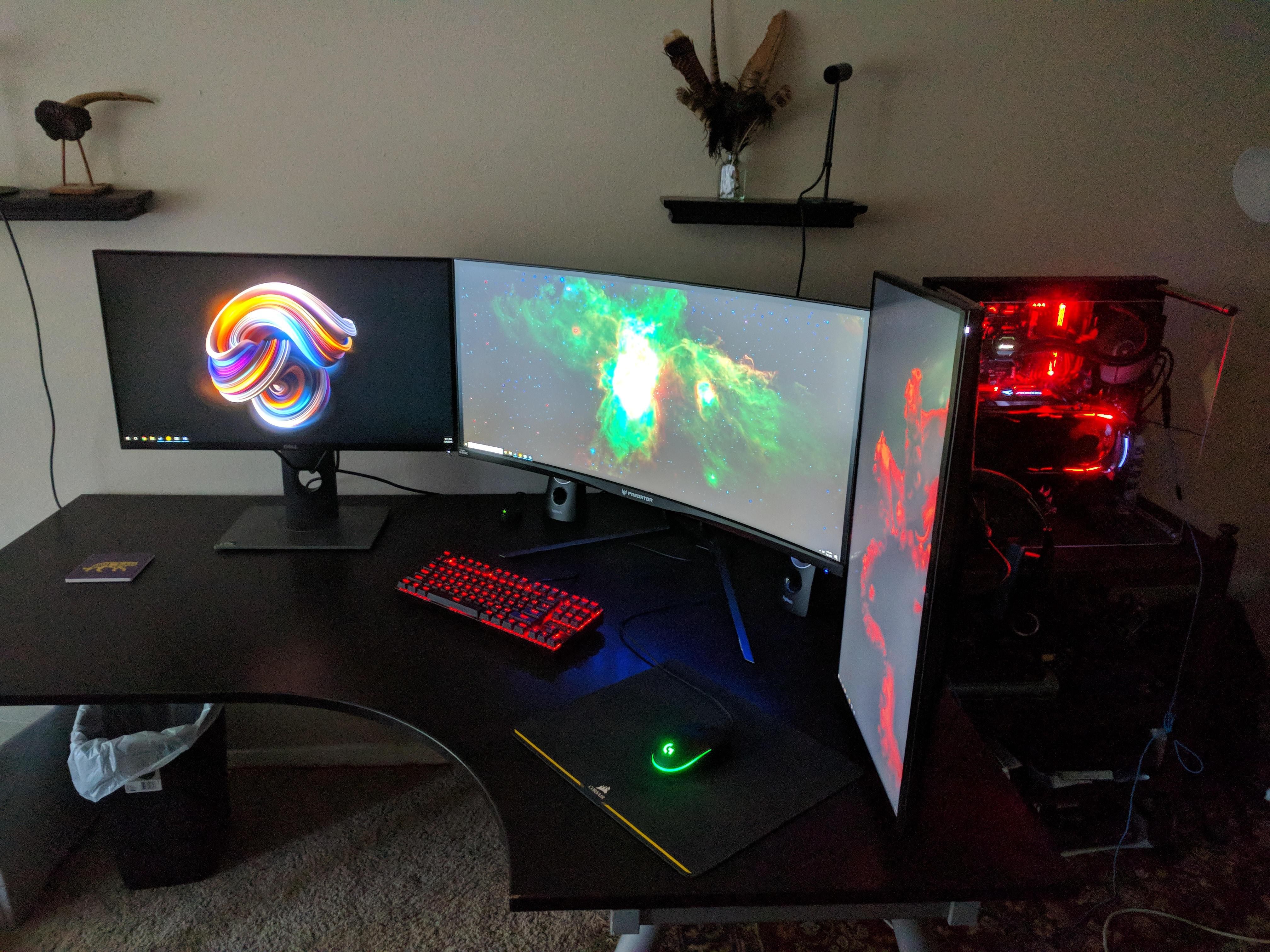
Refresh Rate and Smoothness: The refresh rate (in Hz) shows how often a display updates each second, shaping perceived smoothness in scrolling, cursor movement, and fast action. When paired with adequate frame rate, high refresh reduces blur trails and input latency, making interactions feel more immediate. Equally vital is response time, the speed pixels change state. Good response control, often via overdrive, limits ghosting and overshoot halos. Some monitors offer strobing or backlight scanning to cut motion blur (MPRT), though this can reduce brightness and may introduce flicker. Variable refresh rate (VRR) synchronizes display updates to the graphics output, minimizing tearing and stutter across fluctuating frame rates. For competitive play, prioritize higher refresh and lower input lag; for creative work, smoothness still helps with timeline scrubbing and viewport fluidity. Keep in mind that extreme refresh rates can be bottlenecked by your system, so tune frame caps, scaling, and visual settings to maintain consistent responsiveness.
Color Accuracy and Gamut: True color accuracy means what you see matches the creator's intent or your output medium. Start with gamut: sRGB is the baseline for web and general use, DCI‑P3 targets digital video and modern media, and Adobe RGB benefits print workflows. Coverage alone isn't enough; you need faithful tone response and balanced white point (often D65). Monitors with robust factory calibration help, but proper calibration with a colorimeter and accurate ICC profiles or hardware LUT adjustment brings superior consistency. Consider bit depth: true 10‑bit pipelines reduce banding in gradients, while 8‑bit + FRC can approximate at the expense of subtle noise. Evaluate panel uniformity so corners don't drift in hue or brightness, and check Delta E metrics when available. Warm up the display before critical tasks, control ambient light and reflections, and use soft‑proofing for print. Ultimately, match your monitor's mode to your content, switching between calibrated profiles for sRGB, P3, or print‑oriented tasks as needed.
Panel Types and HDR Reality: Panel technology affects contrast, viewing angles, and motion. IPS typically offers wide angles and stable color, with modest native contrast and occasional IPS glow. VA panels deliver deeper blacks and high contrast for movies and dark rooms, but can exhibit slower dark‑to‑bright transitions that cause smearing. OLED provides near‑instant response, exceptional perceived black, and rich contrast, yet may manage brightness with aggressive ABL and benefits from mindful static UI practices. TN favors speed over color and angles, now a niche for latency‑focused users. For HDR, look beyond the label: meaningful impact requires high peak brightness, wide gamut, solid local dimming or self‑emissive control, and precise tone mapping. Edge‑lit solutions may lift highlights but struggle with blooming and shadow detail. Consider color volume and sustained brightness, not only peaks, and assess reflectivity and ambient light. The best experience blends strong contrast handling with accurate color and consistent luminance across real scenes.
Practical Setup and Buying Tips: Start with your space and habits. Choose screen size and resolution to fit your desk depth so text is readable without aggressive scaling; many find moderate‑density 27‑inch QHD or larger 4K effective, while ultrawide layouts boost horizontal workflows. Check connectivity: DisplayPort excels for high bandwidth, HDMI is versatile for consoles and media, and USB‑C with DisplayPort Alt Mode and power delivery streamlines single‑cable laptop setups or enables built‑in KVM features. Prioritize ergonomics with height, tilt, swivel, pivot, and VESA mounting to reduce strain and align multi‑monitor seams. Look for flicker‑free dimming, low blue light modes, and anti‑glare coatings suited to your room. Use quality, appropriately rated cables without overspending on boutique options. After unboxing, set a reasonable brightness, select the correct color mode (sRGB, P3, or native), refine sharpness, and perform calibration. For gaming, enable VRR and fine‑tune overdrive. Revisit these settings as lighting changes to keep your display consistently comfortable and accurate.