A Beginner's Guide to Building a Budget-Friendly Desktop PC
Learn how to pick the right parts, avoid bottlenecks, and assemble a reliable desktop PC on a tight budget—without sacrificing upgradability or performance.
Define Your Goals and Budget. Before buying parts, clarify what you want your desktop PC to do and set a realistic limit for total spending. A build for light office work and streaming emphasizes a capable CPU, enough RAM, and fast storage, while a gaming or creative workstation may shift weight toward a dedicated GPU. List your must-haves, nice-to-haves, and features you can skip. Consider hidden costs like a monitor, peripherals, and a Windows license or alternative operating system. Think about form factor (ATX, microATX, Mini-ITX) and the space you have for the case. Plan for upgrade paths: choose parts that allow adding more memory, storage, or a stronger graphics card later. Prioritize compatibility first, then value. Balance price and performance by comparing benchmarks conceptually rather than chasing the absolute newest thing. A deliberate approach keeps the build streamlined, prevents impulse purchases, and ensures your money goes where it makes the most noticeable difference to everyday use.
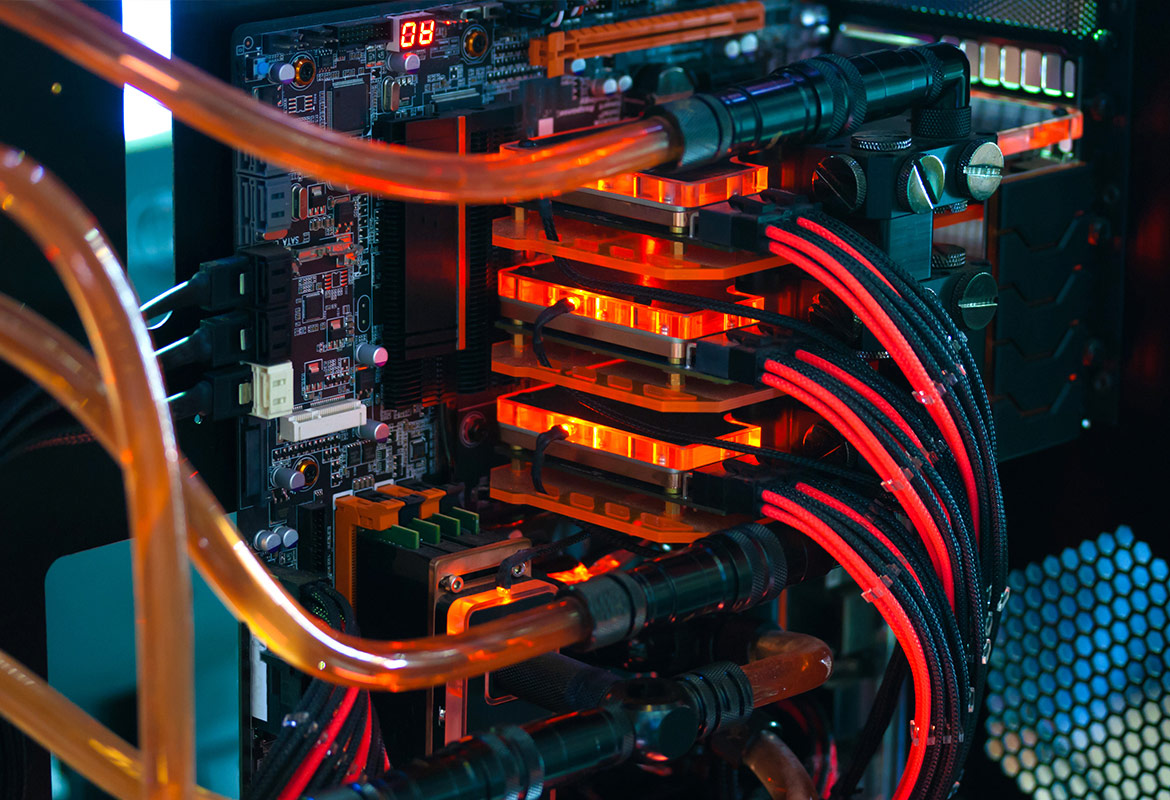
Choose Core Components Wisely. The heart of your system is the CPU, motherboard, RAM, and storage. Match your CPU to the right socket and a motherboard with a suitable chipset, reliable VRM quality, and enough PCIe slots and M.2 connectors for future expansion. For everyday computing and entry gaming, a modern multi-core CPU with decent integrated graphics can be enough, especially if you favor lower resolutions or esports titles. Aim for dual-channel DDR4 or DDR5 memory in two sticks to unlock bandwidth; 16 GB is a practical starting point for most users, while 32 GB suits heavier multitasking. For storage, a NVMe SSD provides snappy boots and load times; supplement with a larger SATA SSD or HDD for bulk media. Verify cooler clearance and memory height compatibility. Spend where it matters: a responsive SSD and adequate RAM improve daily feel, while a solid motherboard simplifies stability, updates, and clean cable routing inside the case.
Graphics, Power, and Cooling on a Budget. If gaming or GPU-accelerated workloads are priorities, size your GPU to your monitor resolution and desired frame rates. Evaluate VRAM capacity for textures and creative apps, but avoid paying for performance you will not use. When funds are tight, consider starting with integrated graphics, then upgrading the GPU later. Pair the build with a dependable PSU rated for enough wattage plus headroom; look for reputable efficiency labels like 80 Plus and favor quality over sheer power. A quieter, efficient PSU reduces heat and extends component life. For cooling, many CPUs ship with a stock cooler sufficient at stock settings, while a budget tower air cooler can lower noise and temperatures. Case airflow matters: prioritize front-to-back or bottom-to-top paths, use at least one intake and one exhaust fan, and apply fresh thermal paste correctly. Tuning fan curves offers silent operation at idle while maintaining safe thermals during heavy loads.
Case, Assembly, and Cable Management. Choose a case that fits your components, offers good airflow with a mesh front, has dust filters, and provides enough clearance for your GPU and cooler. Front-panel I/O (USB, audio) and drive bays should match your needs. Before assembly, gather a screwdriver, zip ties, and a clean surface. Ground yourself to avoid ESD damage. Install the CPU, RAM, and M.2 SSD on the motherboard first, then mount the board into the case with correct standoffs. Add the PSU, route power cables, and seat the GPU securely in the top PCIe slot. Connect front-panel headers carefully, referencing the motherboard diagram. Keep cables tidy by routing behind the motherboard tray, using tie-down points for a clean path that improves airflow and makes maintenance easier. On first boot, enter UEFI/BIOS to enable XMP/EXPO, set the boot drive, update firmware if needed, and verify component detection before installing the operating system and drivers.
Testing, Optimization, and Easy Upgrades. After installation, verify stability with basic stress tests for the CPU, GPU, and memory, and monitor temperatures and clock speeds to ensure cooling is adequate. Update essential drivers, configure your power plan, and create sensible fan curves for a quiet system at idle and responsive cooling under load. Organize storage by separating the operating system and frequently used apps on the SSD, with bulk files on secondary drives. Plan incremental upgrades that deliver the most value: adding RAM for multitasking, moving to a faster NVMe SSD, or stepping up to a stronger GPU when your budget allows. Maintain your PC with periodic dust cleaning, firmware updates only when beneficial, and SMART checks on drives. Pair the build with a suitable monitor, keyboard, and mouse that match your use case. By avoiding false economies and keeping an eye on balanced performance, you build a system that stays responsive and enjoyable for years.